Monday, April 2, 2018

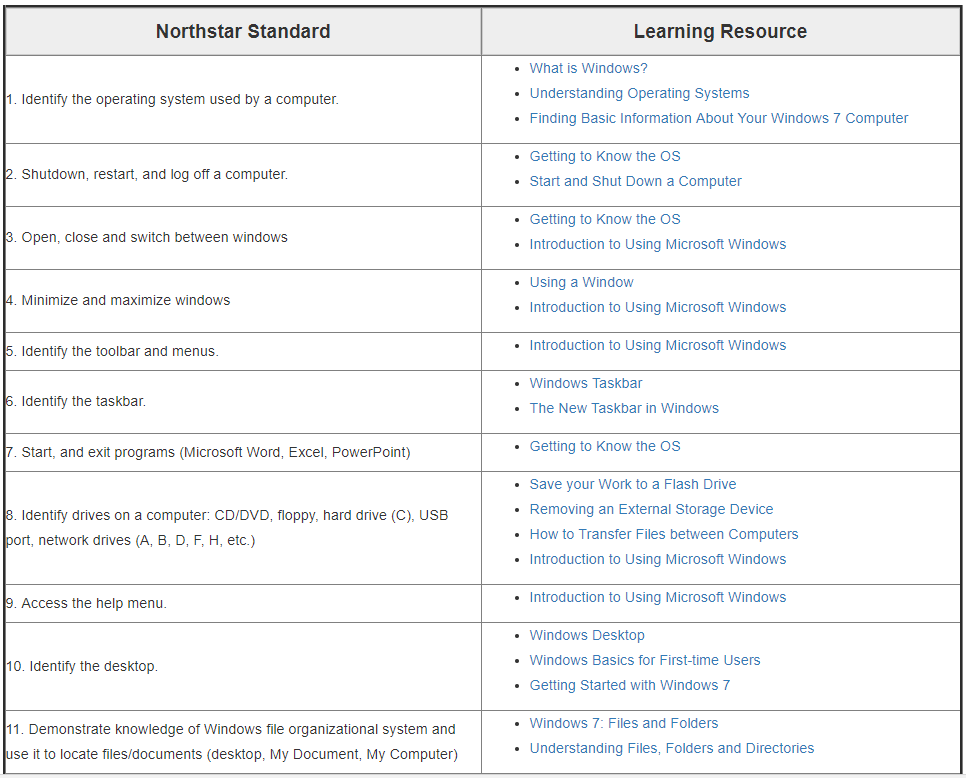
Identify Computer Parts and Practice Drag and Drop--at the Same Time!

We've learned some computer vocabulary, and we've practiced some mouse skills. Now try combining the two things!

My suggestion: Click on the link below to play a game in which you drag the correct name to the  picture of a computer part or accessory.

Link: Drag the Computer Words to Match the Pictures


Computer Skills Practice


Seniornet.org has how-to videos and instructions for some basic computer skills, including those at the links below.

My suggestion: Click on any link below to get to that lesson:

Thursday, September 7, 2017

Computer Vocabulary Review and Listening Exercise

If you were not able to be in class today (Wednesday, May 24th), please review the computer vocabulary we have learned so far (see Vocabulary 1 and 2 handouts). Then try an internet quiz on computer parts and accessories (a few of the computer terms are not on the handouts, but hopefully you can figure them out).

The other activity we did was to read ads for jobs. We completed a listening exercise and answered True/False questions about the job advertisements. This exercise is on the internet at the second link below.

My suggestions:  1) Click on the first link below for a multiple choice quiz about computer parts and accessories.

LINK 1: Multiple Choice Quiz on Computer Parts and Accessories


2) Click on the next link below and read I. Pre-Listening Exercises with the three job ads. Then scroll down to II. Listening Exercises and click on the Play Audio button that looks like this:

You will listen to ten statements about the ads. The statements are partly written below the Play Audio button, but you have to listen to the recording to hear the complete statements and decide if each one is true or false. For each statement, click the True or False button. When you have answered all ten, click the Final Score button at the end to check your answers. WARNING: I think one of the answers the computer gives (#9) is wrong. See if you agree!


LINK 2: Listening Exercise--Questions about Job Ads

Monday, August 28, 2017

Review Your Knowledge of the Windows Operating System

The website https://www.gcflearnfree.org/ has many tutorials on many subjects, including computer skills. No matter which version of Windows your computer uses, there are lessons and quizzes available online at this website or others.

My suggestions: If you need to learn about using the the Windows 8, Windows 8.1, or Windows 10 versions of this operating system, click on one of the links below. Each tutorial has a quiz at the end.

LINK: Free Windows 8 or 8.1 tutorial

LINK: Free Windows 10 Tutorial

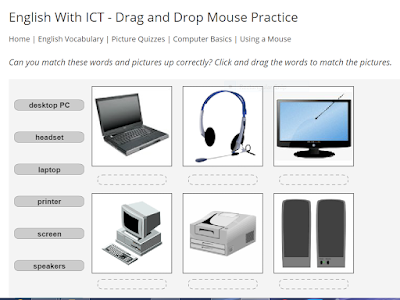
If you need to review your knowledge of the Windows operating system in general, the Northstar Learning Guide to Windows 7 on the St. Paul Public Library site is a great place to review.

LINK: Northstar Learning Guide: Module 3A: Windows 7
(picture of lessons chart below)


Afterward try the Northstar Digital Literacy Assessment for using Windows 7:

LINK: Northstar Digital Literacy Assessment for Windows 7

OR for using Windows 10:

LINK: Northstar Digital Literacy Assessment for Windows 10

Try an Interactive Online Tutorial for the Linux Operating System

Like Windows and Mac OS, Linux is an operating system for computers. Unlike Windows and Mac OS, Linus is FREE. If you are interested in finding out what using this free operating system is like, there is an online tutorial that teaches you  basic Linux commands and lets you try using them in a series of lessons (this is called an interactive tutorial).

My suggestion: Click on the link below. Read the Introduction and follow the instructions to see what using Linux is like.


Basic Online Tutorial for Mac OS X (Apple) Operating System

If you buy an iPad or an Apple desktop or laptop computer, you have to learn the operating system used on these products--Mac OS X (pronounced Mac OS ten). The St. Paul Public Library website directs you to the Northstar learning guides that teach basic computer skills, including both the Windows 7 and Mac OS X operating systems. These learning guides help you meet the Northstar Digital Literacy standards, which are widely recognized standards in adult education programs that teach computer skills.

NOTE: Sometimes the Mozilla Firefox browser (which won't run Adobe Flash Player software) doesn't work well with the Northstar online guides and tests that the St. Paul Public Library uses for teaching computer skills. Use Google Chrome or Microsoft Explorer instead.

My suggestion: Click on this link:

LINK: Learning Guide: Module 3B: Mac OS

You will see a chart like the one below, which matches the Northstar Learning Standards for using the Mac OS X operating system with links to learning resources that help you meet the standards. Click on the first link under Learning Resources (Using a Mac: What is an Operating System?) for a presentation.


Some of the links in the Learning Resource column on the right of the chart may present information you already know. When you think you know most of the information in the lessons, try the Northstar Digital Literacy Assessment (test) for the Mac OS X operating system by clicking HERE

(All Northstar assessments begin with an audio test to see if your computer's sound is working--you should see a picture of a piano and hear music playing.)

Monday, June 12, 2017

Test Yourself Against Digital Literacy Standards

In class we worked through a couple of the assessments (quizzes) on the Northstar website. We did the first module, on Microsoft Word, and the last module, on Information Literacy. Here is an explanation from the website itself: 


The Northstar Digital Literacy Project defines basic skills needed to perform tasks on computers and online. The ability of adults to perform these tasks can be assessed through online, self-guided modules. Included are basic computer digital literacy standards and modules in ten main areas: Basic Computer Use, Internet, Windows Operating System, Mac OS, Email, Microsoft Word, Social Media, Microsoft Excel, Microsoft PowerPoint, and Information Literacy.

My suggestion: Click on the link below and scroll down to where it says Jump in and launch  a module. Then click on one of the ten icons to take an assessment (your browser needs to have Adobe Flash enabled for you to take the assessments; Macintosh/iPad computers tend not to allow the Flash player, and Firefox has difficulty with it. The website recommends a browser other than Windows Explorer). 

Here is a picture of the icons (these are not links--the link is below, at the end of this post):


Note: Choose #3A if you use a Windows operating system on your desktop or laptop computer, or #3B if you have a Macintosh computer or iPad). 

LINK: Northstar Digital Literacy Assessment